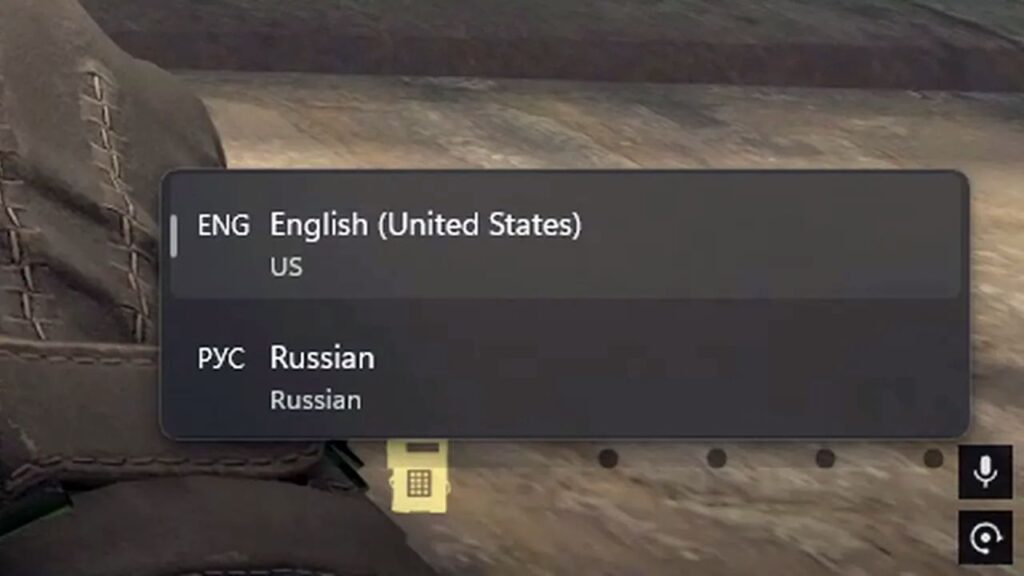
When you use multiple input languages and/or multiple keyboard layouts, whenever you switch between them, a large popup showing the language list appears somewhere on the screen, usually above the system tray on the taskbar.
It is annoying on its own when you have to switch languages multiple times while typing, because the constant flashing is distracting. But what is worse, it can appear over your games, sometimes with a flickering effect. This happens because the default input switch combination is Alt + Shift, while some people prefer Ctrl + Shift — and these modifier keys are widely used in games for sprinting, aiming, crouching, and many other actions.
Anyway, here is how to remove this popup by adding a significant delay before it appears. In practice, it will never appear unless you hold the keys down for an extremely long time — something that will probably never happen during normal use.
All you need to do is add two settings to the Windows Registry. No patching, no scripts.
Press Win + R, type regedit, and press Enter to open the Registry Editor.
Navigate to:
HKEY_CURRENT_USER\Keyboard Layout\Toggle
If the Toggle key does not exist under Keyboard Layout, right-click Keyboard Layout, New , Key, and name it Toggle.
Inside the Toggle key, create a DWORD (32-bit) Value named HotkeyShowDelayInMS. Open it, select Decimal, and set its value to: 100000000
In the same Toggle key, create another DWORD (32-bit) Value named InputSwitcherShowOnMultiPress and set its value to: 0
The changes take effect immediately; no restart is required.
This works on both Windows 10 and Windows 11.
Reg file:
Windows Registry Editor Version 5.00
[HKEY_CURRENT_USER\Keyboard Layout\Toggle]
"HotkeyShowDelayInMS"=dword:99999999
"InputSwitcherShowOnMultiPress"=dword:00000000
If you still prefer to apply the fix by importing a .reg file, you can download a ZIP archive containing the registry file here.