How to Stop Discord From Broadcasting Your Desktop Audio
If you’re using normal headphones or a headset with a microphone – USB or analog – this method should finally stop your PC audio from leaking over voice chat.
If you’ve ever played a game, watched a movie, listened to music, or opened a YouTube video while chatting on Discord—only for everyone in the voice channel to hear everything happening on your computer—you already know how annoying (and sometimes embarrassing) this problem can be.
Most people end up muting themselves in Discord just to stop broadcasting their desktop sound, but that also means they can’t talk. And unfortunately, this issue is decades old. It existed in Discord’s earliest days, and even before that, it plagued millions of Skype users.
Because this problem is so old, the internet is full of outdated solutions. Some of them worked years ago—some even worked for me when I made a video about it seven years ago—but many no longer apply in 2025. Discord, Windows, and modern headsets have changed, and the root causes of the issue have shifted.
This guide explains why the problem happens and walks you through every reliable solution that works right now.
When the Problem Is Your Headset
Before diving into Discord settings, understand that sometimes the issue is purely mechanical or electrical.
Mechanical audio leak
The sound from your headphones vibrates the plastic housing, and those vibrations travel into your microphone.
This happens with both USB and analog headsets.
Electrical audio leak
More common in USB headsets where audio output and input circuits share the same internal board.
Sound can “bleed” from the headphone output directly into the microphone input.
This can happen even with detachable microphones. I once reviewed a Fifine headset that leaked sound even with the microphone physically unplugged.
In both mechanical and electrical cases, people will hear a very faint version of your desktop audio.
If your friends hear your desktop sound at full volume, then your problem is software-related, not mechanical.
Outdated Fixes That Used to Work
Several older solutions still float around the internet, including some from my own older content. While some may still help in specific cases, they’re no longer universally reliable.
1. Disabling Stereo Mix
On older Realtek onboard audio systems, disabling “Stereo Mix” would prevent Windows from feeding desktop audio into your mic.
This still works sometimes, but:
USB headsets don’t use your motherboard sound card
Most USB headsets don’t have Stereo Mix at all
Many modern Realtek drivers hide or remove this option entirely
2. Realtek Audio Console Tricks
If you do use Realtek onboard audio and still have the Realtek Console (or manufacturer-skinned versions from MSI, Gigabyte, etc.), you may find:
“Separate all input jacks as independent”
“Acoustic Echo Cancellation”
These might help, especially on desktops with multiple jacks.
But laptops usually have only one combo jack, limiting possibilities.
3. Audio bloatware
Gaming laptops—especially MSI—often come with Nahimic, a notorious piece of audio middleware that adds processing, increases CPU load, and creates issues.
Intel systems may also include Intel Smart Sound, which can interfere with audio routing.
You don’t need to uninstall them (which is often difficult).
You can simply disable the devices in Device Manager and fall back to standard Realtek or Microsoft audio drivers.
When the Problem Is Discord Itself
In many cases today, Discord is the real culprit.
One of the older known fixes was switching the audio subsystem from “Legacy/Automatic” to “Standard.”
That option no longer exists.
Discord removed it and replaced it with something else—but it’s hidden unless Discord loads its full set of audio features.
Step 1: Check for Missing Audio Options
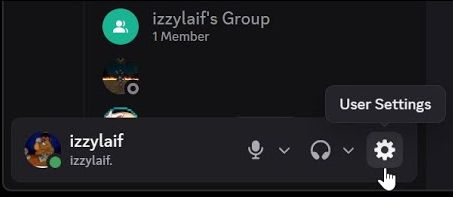
Go to User Settings → Voice & Video.
If you don’t see Discord’s noise cancellation (Crisp), then:
Discord didn’t load its audio modules
Some settings (including the fix you need) are missing
Step 2: Fully Restart Discord
Closing the window is not enough. You must:
Open Task Manager
Kill every Discord process
Relaunch Discord
Now go back to Voice & Video.
You should see the noise cancellation options—and the setting that fixes the problem.
Step 3: Disable “Bypass system audio input processing”
This is the new setting that replaced the outdated audio subsystem option.
You want it OFF.
After disabling it:
Kill Discord again
Restart it
Confirm the setting remains off
Now test your microphone by playing a YouTube video while in a Discord call.
Your friends should no longer hear any desktop audio.
Why This Works
Discord sometimes tries to “help” by interacting with Windows’ audio routing and processing systems.
Ironically, this can cause your mic to capture system audio when apps share audio interfaces.
Disabling “Bypass system audio input processing” forces Discord to handle audio correctly and prevents cross-routing.